
- How to Install Convert Pro Addons?
- Understanding the General Settings of Convert Pro
- Understanding the Email Notification Settings in Convert Pro
- How to Create a Modal Popup in Convert Pro?
- Configuration Settings for a Modal Popup in Convert Pro
- How to Display a Call-to-action on a Specific Page, Post, Category etc (Page Level Targeting)?
- How to Target Users based on the Device they use?
- Schedule Your Call-to-action in Convert Pro
- What is a Call-to-Action in Convert Pro? How can I create one?
- Shortcut Keys For Customizer Operations
- Google Analytics Integration with Convert Pro
- How to Setup Convert Pro Events in Google Tag Manager
- Understanding the Email Notification Settings in Convert Pro
- How to A/B Test Two or More Call-to-Actions in Convert Pro?
- How to Add Custom CSS/HTML code/shortcode to a Call-to-action in Convert Pro?
- How to Create a Language Specific Popup in Convert Pro?
- Introduction to Rules sets in Launch settings of Convert Pro
- How to Integrate an Elementor Form in a Convert Pro call-to-action?
- How to display call-to-action based on URL parameter
- How to Set Cookie Name When a Particular Call-to-action is Submitted or Closed?
- Adding the Google reCaptcha form field in Convert Pro
- What is MX Record Validation For Email in advanced settings?
- How to Change the Slug of Popup? – Convert Pro
- How to Enable Form Field Validation?
- How to Add Dynamic Tag Support for the Autoresponder?
- Display Call-to-Action Inside the Post/Page Content
- Authorize Convert Pro to view Google Analytics 4 data
- How to Setup Convert Pro custom Events in Google Analytics 4 property
- Troubleshooting Guide: Google Analytics Integration
- How to Disable Click Event for a text?
- What are the Field actions in Convert Pro?
- Designing a Call-to-action in Convert Pro
- Cookie Settings in Convert Pro
- How to Create an Infobar in Convert Pro?
- How to Create a Full Screen Popup or Call-to-action in Convert Pro?
- How to Edit a Call-to-action in Mobile View?
- How can I disable a Call-to-action on Mobile Devices?
- How to Rename a Call-to-action in Convert Pro?
- How to Display a Call-to-action when a Specific Product is Added to the Cart?
- Working with Referrer Detection in Convert Pro
- Show or Hide Call-to-action to Logged in and First time users
- How can I disable a Call-to-action on Mobile Devices?
- How to Disable Google Fonts in the Frontend?
- How to Target Users based on the Device they use?
- Filter to Add a New Custom Font
- Convert Pro Email Notification Filters
- OttoKit Integration with Convert Pro
- Google Analytics Integration with Convert Pro
- How to Integrate Convert Pro with ActiveCampaign?
- How to Integrate Convert Pro with ConvertKit?
- How to Integrate Convert Pro with AWeber?
- How to Integrate Convert Pro with Benchmark Email?
- How to Integrate Convert Pro with Campaign Monitor?
- How to Integrate Convert Pro with Campayn?
- How to Integrate Convert Pro with CleverReach?
- How to Add a New Google Font?
- How to Add Custom Conditions to Display a Call-to-action?
- How to Change the Credit Link Text?
- How to Display a Call-to-action when a Specific Product is Added to the Cart?
- How to Trigger a Call-to-action only on Woo-commerce order received page?
- How to Use the Advanced Script Addon in Convert Pro?
- How to Clear Cache for Call-to-Actions in Convert Pro?
- How to Create a Language Specific Popup in Convert Pro?
- How to White Label Convert Pro?
- Authenticate your MailChimp Account
- Authenticate your Benchmark Email Account
- Authenticate your ActiveCampaign Account
- Authenticate your Campaign Monitor Account
- Authenticate Your CleverReach Account
- Authenticate Your ConvertKit Account
- Authenticate your GetResponse Account
- Authenticate Your MailerLite Account
- Drip API Token
- How to Trigger a Welcome Popup or Opt-in with Convert Pro?
- How to Trigger an After Scroll Call-to-Action with Convert Pro?
- How to Trigger a Popup when a User is About to Leave the Page (Exit Intent)?
- How to Trigger a Call-to-action only on Woo-commerce order received page?
- How to Trigger a Popup on User Inactivity (User Inactivity Trigger)?
- How to Trigger a Popup or Call-to-action on Click of an Element/Button?
- Trigger a Call-to-Action using a Link Code
- Trigger a Call-to-Action using a Unique CSS class or ID (Button and WordPress Menu Item)
- How to Trigger a Call-to-Action after a Blog Post?
How to Integrate an Elementor Form in a Convert Pro call-to-action?
We received quite a lot of requests asking us whether we can integrate a form created in Elementor within a Convert Pro call-to-action.
Yes you can! If you are using Elementor Pro, you can create a form using Elementor and embed it in a modal popup, infobar, slide-in, etc created using Convert Pro.
Let us take a look at the step by step guide below.
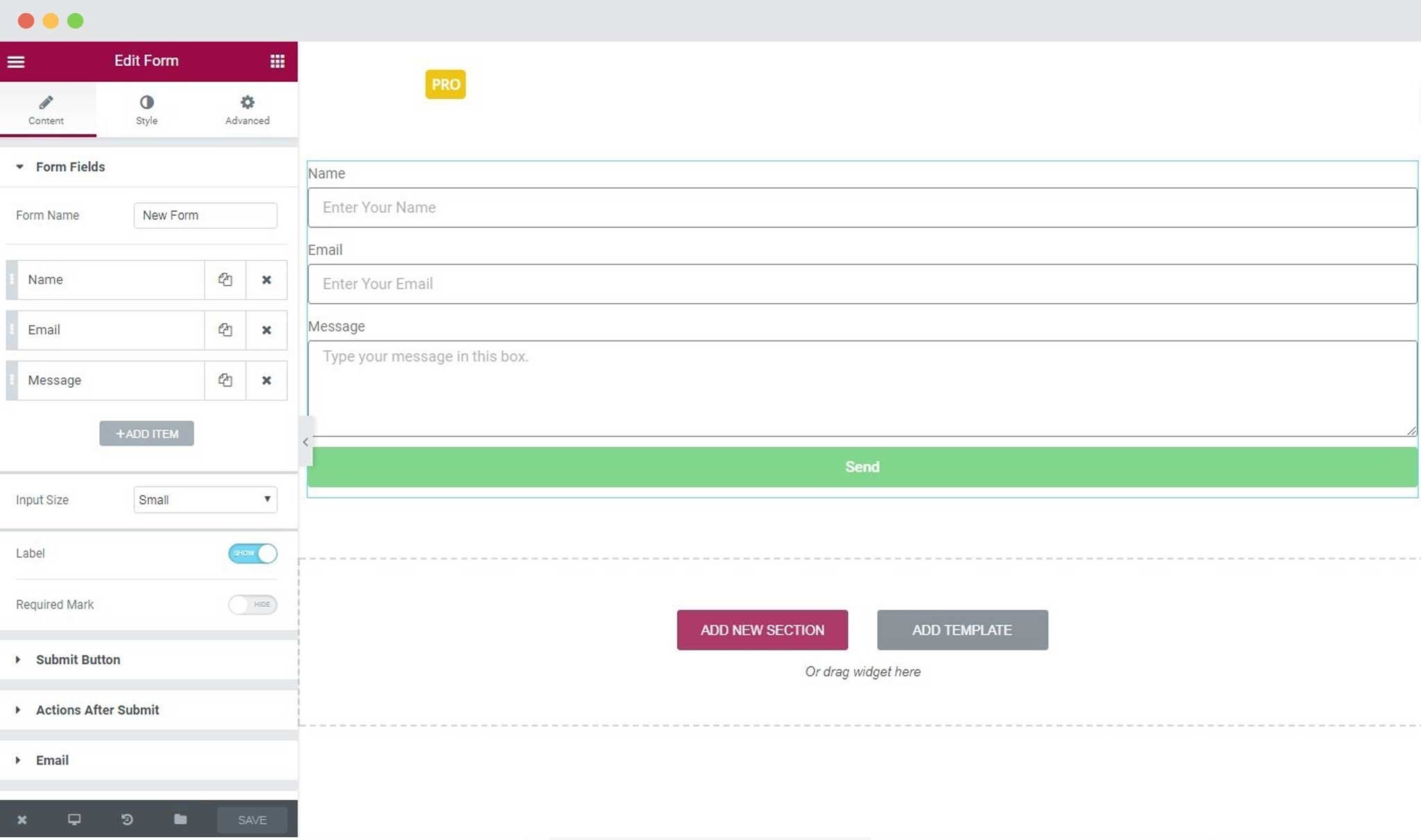
Step 1: Create a form and design it using Elementor.
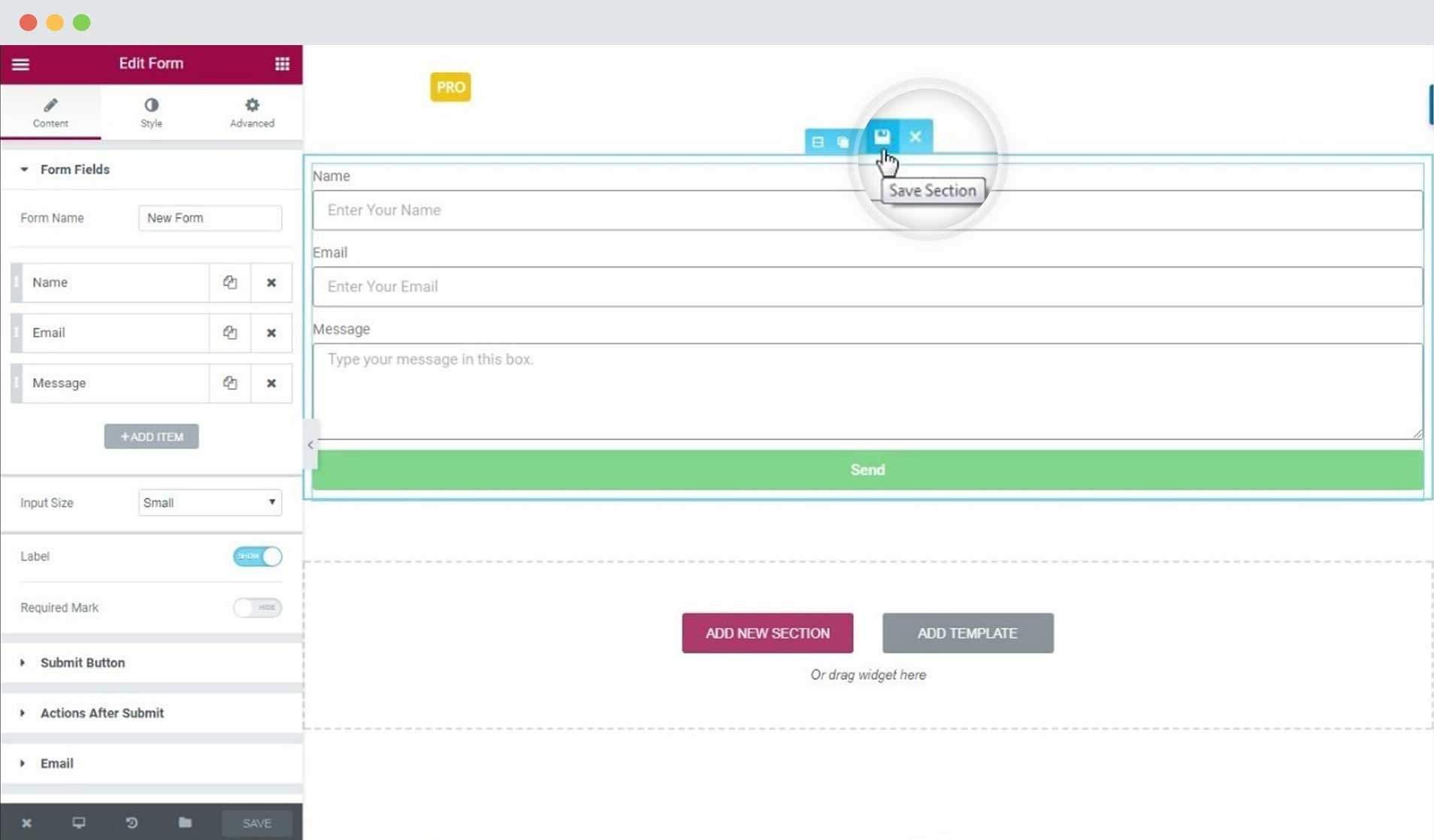
Step 2: Save this as a template.
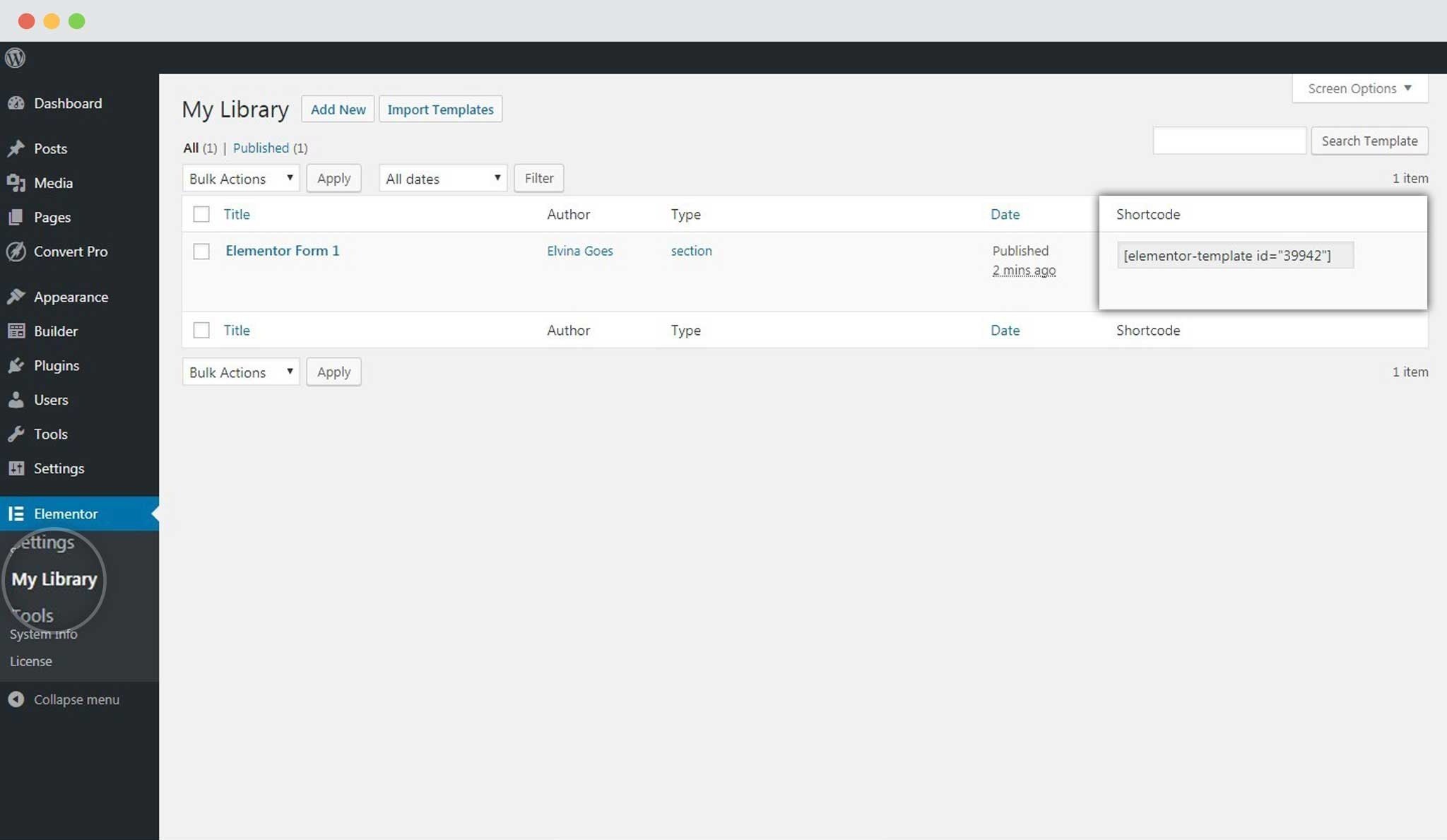
Step 3: Copy the shortcode of the form you’ve just created.
For this, you will need to go to Elementor -> My Library. You’ll find the shortcode besides the form template in the list.
Step 4: Create a call-to-action in Convert Pro and drag and drop an HTML element.
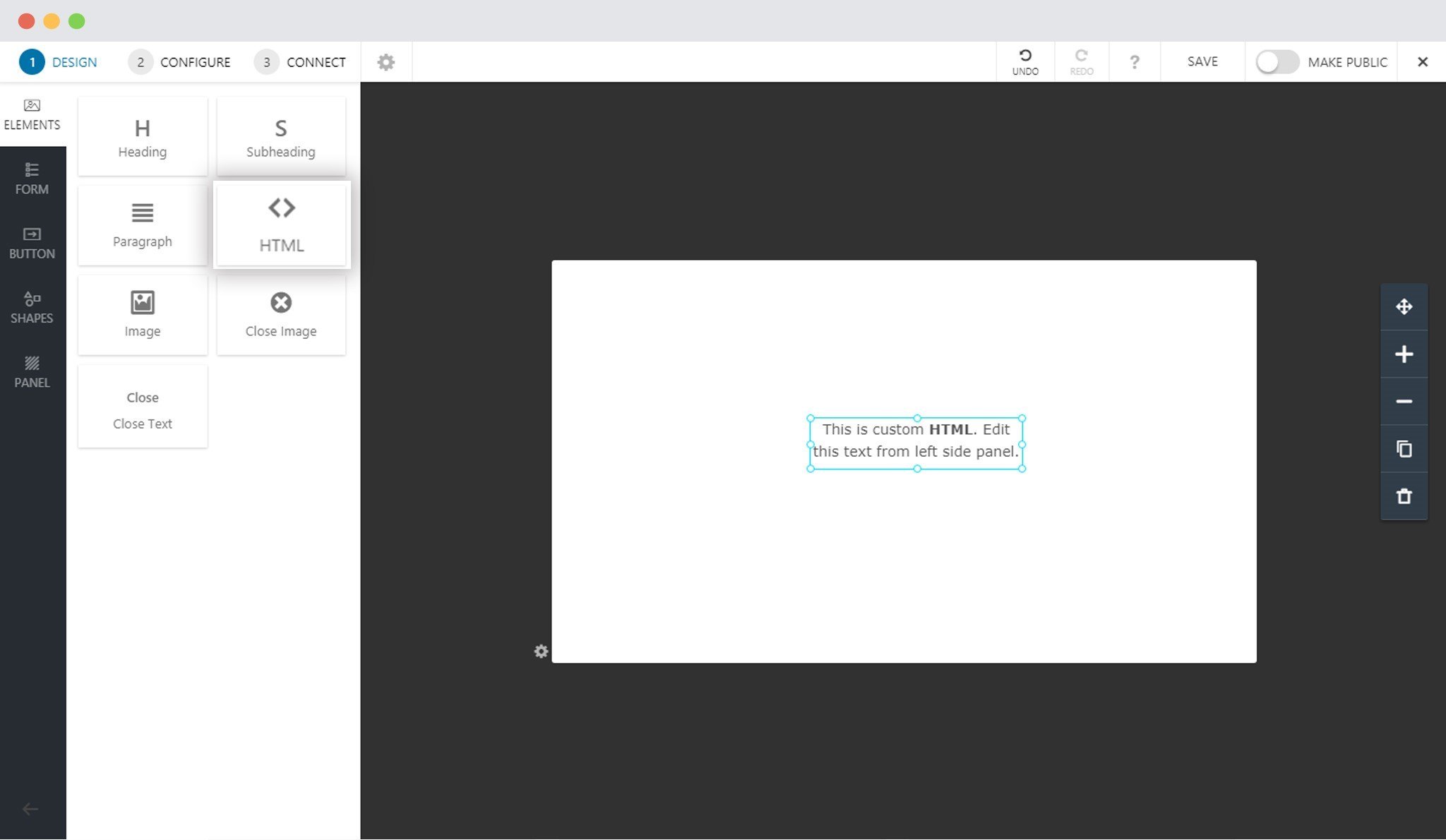
Step 5: Paste the shortcode in the HTML code field.
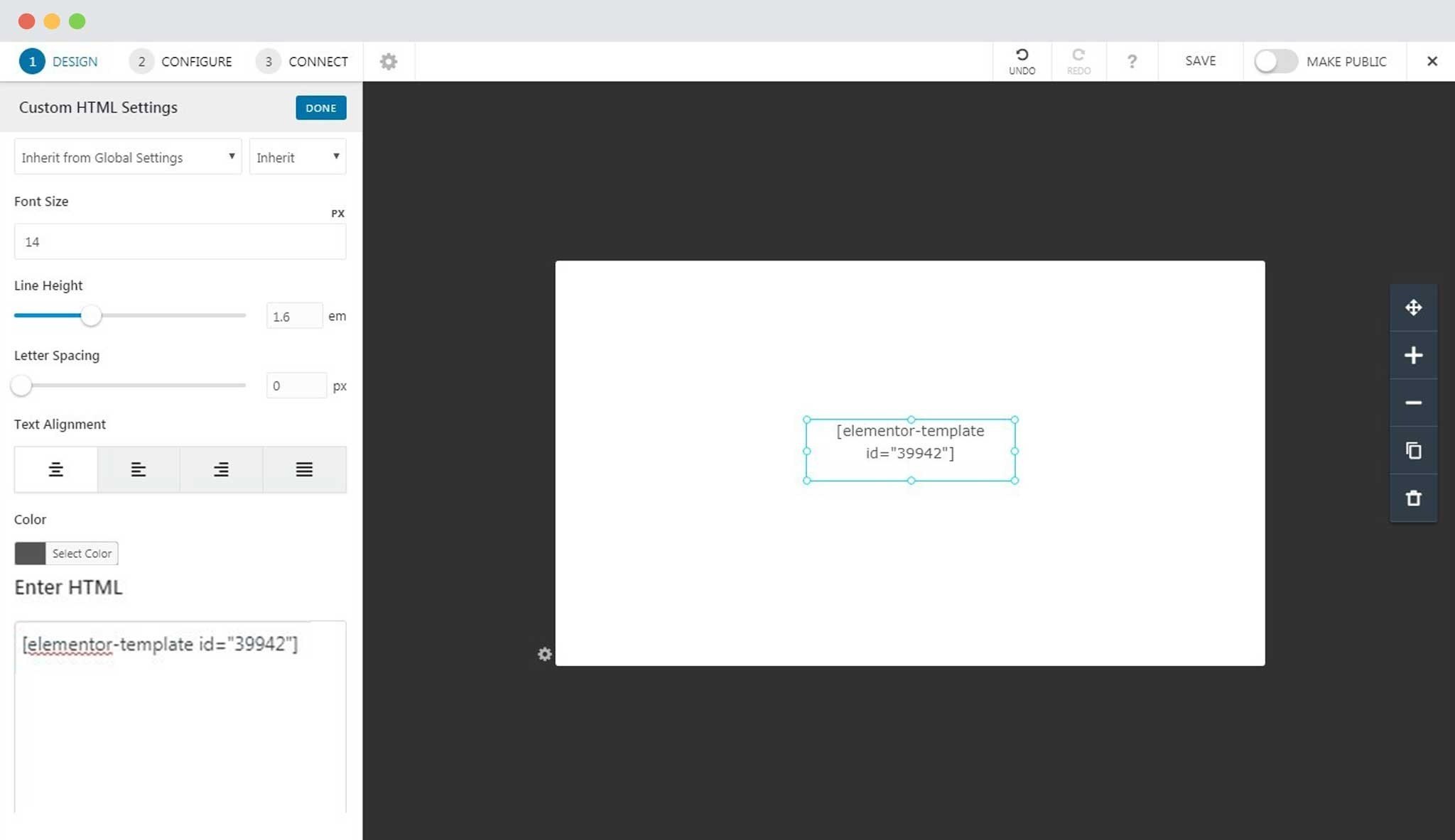
Step 6: Save and Publish!
See your Elementor form embedding in your Convert Pro call-to-action in the front end.
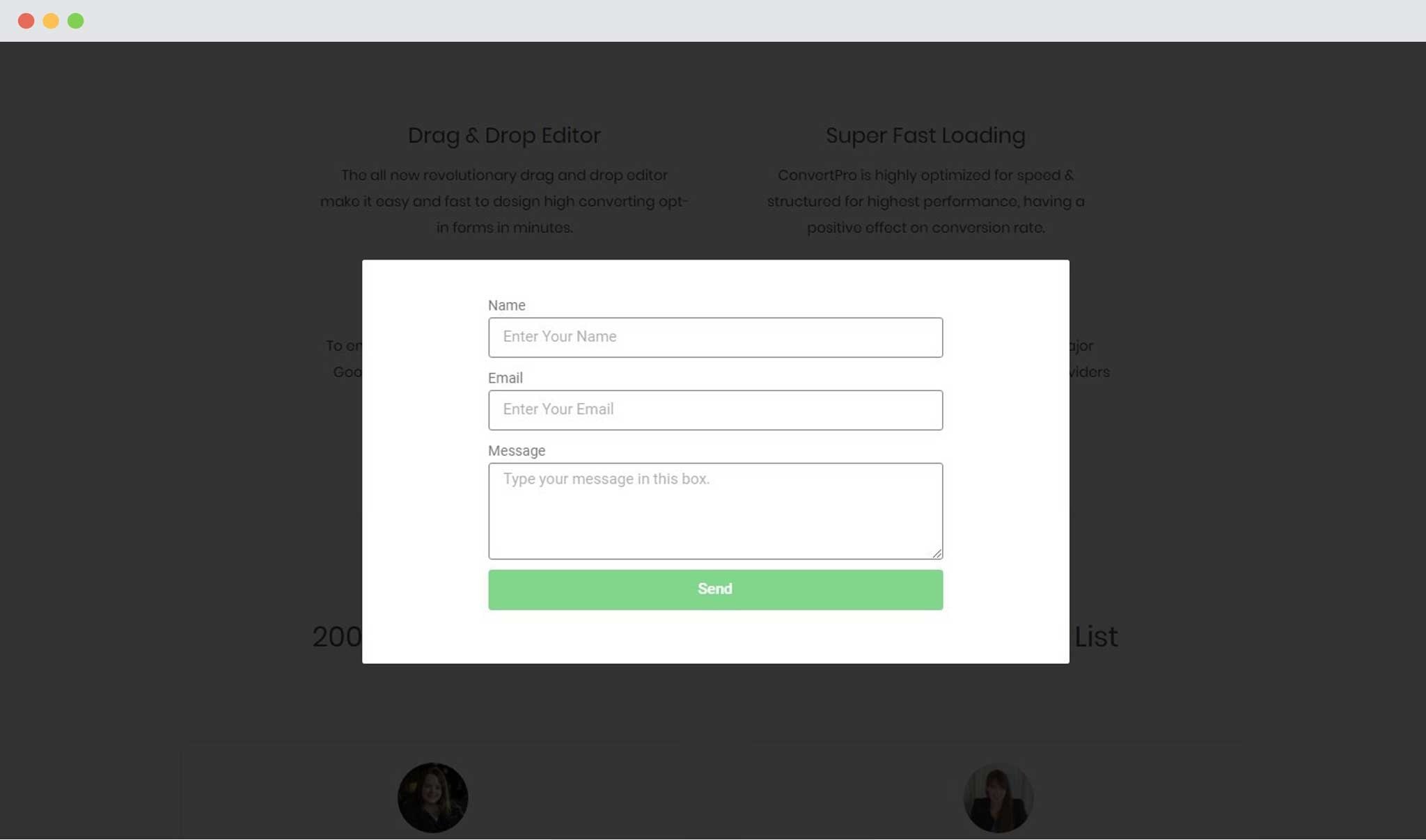
Note: You can use the other elements to edit and design the popup in Convert Pro.
Need help? Get in touch!
We don't respond to the article feedback, we use it to improve our support content.

